Updated 16 October 2026tutorial
GoHighLevel Workflows: 10 You Should Build Today
The 10 most powerful GoHighLevel automation workflows for agencies and businesses. Step-by-step setup instructions with triggers, actions, and real examples.
 Ashley Kemp13 min read
What automations can you build in GoHighLevel?
GoHighLevel supports multi-channel automations across email, GoHighLevel SMS marketing, phone calls, voicemail drops, and more. Common workflows include speed-to-lead follow-ups, appointment reminders, review requests, missed call text-backs, lead nurture sequences, re-engagement campaigns, and pipeline-triggered notifications.
GoHighLevel's workflow automation engine is the feature that saves agencies and businesses the most time. A single well-built workflow can replace hours of manual work per week, following up with leads in the GoHighLevel CRM, sending reminders, requesting reviews, and nurturing prospects across every channel.
Here are the 10 workflows every GoHighLevel user should build, with step-by-step setup instructions.
Get your first month free through our partner linkClaim my free monthWorkflow 1: Speed-to-Lead Response
Why it matters: The odds of contacting a lead drop 100 times when the first call goes out at 30 minutes instead of 5, and the odds of qualifying one drop 21 times (Oldroyd, McElheran and Elkington, Harvard Business Review, 2011). Those numbers are about reaching the lead at all, not about closing them. This workflow ensures every lead receives an instant response, 24/7.
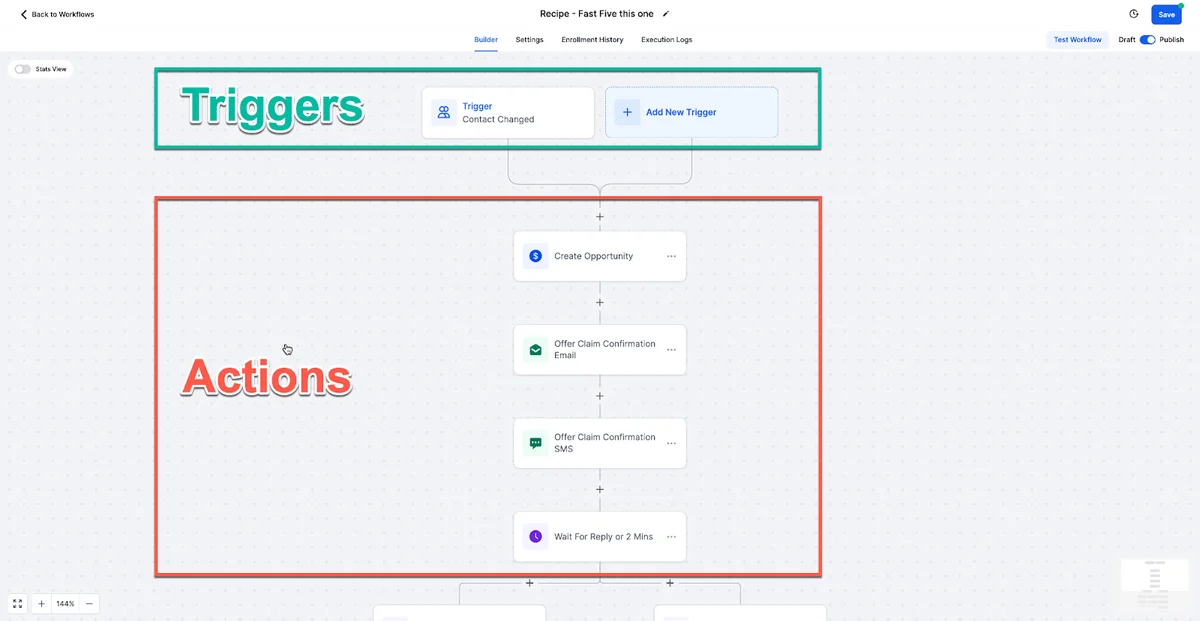
Trigger: Form Submitted or Contact Created
Workflow steps:
- Wait 10 seconds - small delay to avoid feeling robotic
- Send SMS: "Hi
{contact.firstName}, thanks for reaching out to [Business Name]. I received your message and will get back to you personally within the hour. In the meantime, is there anything specific I can help with?" - Send Email: Welcome email with relevant information about their inquiry
- Create Task: "Call
{contact.firstName}- new lead from{trigger.source}" assigned to the sales rep - Wait 24 hours
- If/Else: Check if contact replied to SMS or email
- If No Reply → Send SMS: "Hi
{contact.firstName}, just checking in. I wanted to make sure you got my message yesterday. When is a good time for a quick call?" - Wait 48 hours
- If Still No Reply → Send Voicemail Drop: Pre-recorded 30-second message introducing yourself
Build this workflow first, because it usually pays back fastest. The multi-channel approach (SMS, email, voicemail) ensures you reach leads on their preferred channel.
Workflow 2: Appointment Reminder Sequence
Why it matters: No-shows waste your most valuable resource, time. A reminder that lands the day before, and again on the morning of the appointment, gives the client a prompt to confirm or reschedule instead of simply not turning up.
Trigger: Appointment Booked
Workflow steps:
- Immediately → Send Email: Confirmation with date, time, meeting link, and preparation instructions
- Immediately → Send SMS: "Confirmed! Your appointment with [Business Name] is on
{appointment.date}at{appointment.time}. Reply YES to confirm." - Wait until 24 hours before appointment
- Send Email: Reminder with any pre-meeting tasks and the meeting link again
- Wait until 2 hours before appointment
- Send SMS: "Quick reminder, your meeting with [Business Name] is in 2 hours at
{appointment.time}. Here is the link:{appointment.link}" - Wait until 15 minutes before
- Send SMS: "Starting in 15 min. See you soon."
The escalating frequency keeps the appointment top of mind without being annoying. The early reminders use email (less intrusive), while the final reminders use SMS (harder to miss).
Workflow 3: Missed Call Text-Back
Why it matters: Most callers who reach voicemail will not call back. An instant text-back captures leads who would otherwise be lost.
Trigger: Call Status, Missed Call
Workflow steps:
- Wait 30 seconds - in case they call right back
- Send SMS: "Hi, sorry I missed your call. I am with a client right now but wanted to reach out immediately. Can I call you back in the next 30 minutes, or would you prefer to text?"
- Create Task: "Return call to
{contact.firstName}- missed call at{trigger.time}" - Wait 30 minutes
- If No Reply → Send SMS: "Just following up on my message. I am free now if you would like to chat. Otherwise, you can book a time that works for you here:
{calendar.link}"
This simple workflow recovers leads that would otherwise have been lost entirely. It requires no effort after setup.
FREE FOR 30 DAYS
Get your first month of GoHighLevel free
- Every feature, on any plan
- A full month, worth up to $497
- Cancel before day 30, pay nothing
Card required. Nothing charged for 30 days.
Join 2.2 million businesses already running on GoHighLevel
Workflow 4: Post-Service Review Request
Why it matters: Online reviews drive new business. Automating the request is what turns a good experience into a review, rather than leaving the client to think of it themselves.
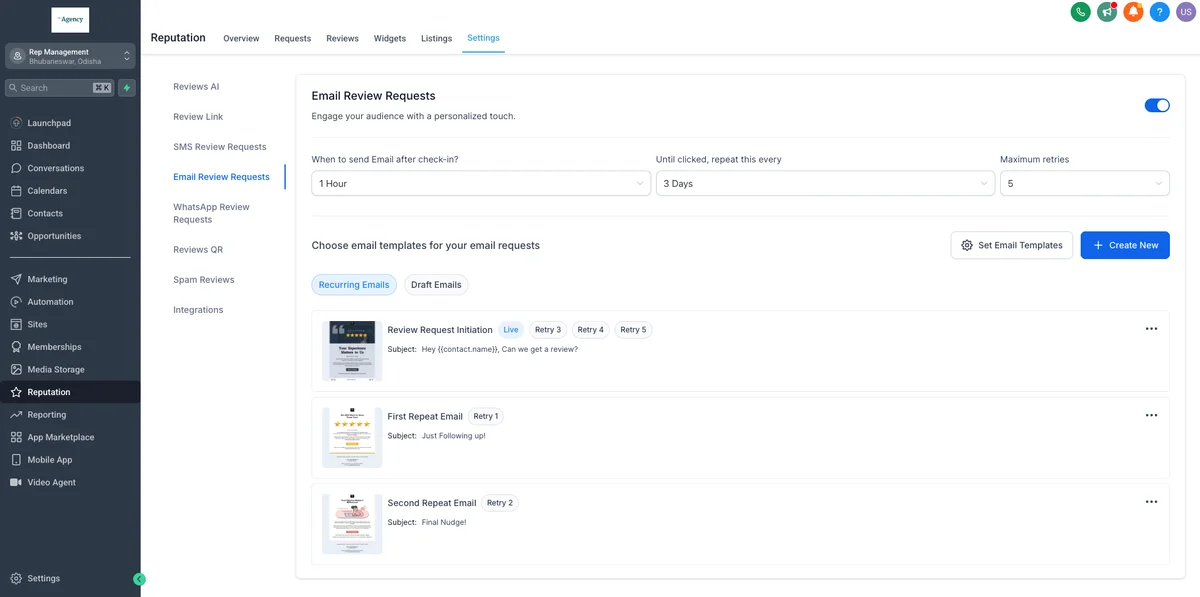
Trigger: Pipeline Stage Changed to "Service Complete" or "Job Finished"
Workflow steps:
- Wait 2 hours - enough time for the client to reflect on the experience
- Send SMS: "Hi
{contact.firstName}, it was great working with you. If you had a positive experience, would you mind leaving us a quick Google review? It helps us help more people like you.{review.link}" - Wait 3 days
- If No Review → Send Email: Longer message thanking them for their business and explaining how reviews help, with a direct link
- Wait 5 days
- If Still No Review → Send SMS: "Hi
{contact.firstName}, just a gentle reminder. If you have 60 seconds, your Google review would mean the world to us:{review.link}"
The SMS-first approach works because a text message is far more likely to be opened than an email. Three touchpoints over eight days captures reviews without being pushy.
Workflow 5: Lead Nurture Drip Sequence
Why it matters: Most leads are not ready to buy immediately. Lead nurturing keeps you in front of them until they are.
Trigger: Tag Added, "Nurture List"
Workflow steps:
- Day 0 → Send Email: Educational content related to their interest (blog post, guide, video)
- Day 3 → Send SMS: Quick tip or insight related to their challenge
- Day 7 → Send Email: Case study or testimonial from a similar client
- Day 10 → Send Email: Common mistakes people make when solving their problem
- Day 14 → Send SMS: "Hi
{contact.firstName}, I have been sending some resources your way. Is [specific problem] still something you are working on?" - Day 21 → Send Email: Detailed guide or framework that demonstrates your expertise
- Day 28 → Send Email: Soft offer, invitation to book a consultation or try your service
- If Reply → Remove Tag "Nurture List" → Add Tag "Engaged Lead" → Create Task for follow-up
The key to effective nurturing is providing real value in every message. Each email should teach something useful, not just pitch your service. The SMS messages add a personal touch that email alone cannot achieve.
Workflow 6: Re-Engagement Campaign
Why it matters: You have already paid to acquire these contacts once. Re-engaging them costs a message; replacing them costs another round of ad spend.
Trigger: Contact has not opened an email or replied to SMS in 90 days
Workflow steps:
- Send Email: Subject: "Should I stop reaching out?" Body: Acknowledge you have been sending content, ask if they would like to continue, offer to update their preferences
- Wait 3 days
- If Opened → Send Email: Share your most popular/valuable piece of content
- If Not Opened → Send SMS: "Hi
{contact.firstName}, I noticed we have not connected in a while. Are you still interested in [topic]? No worries either way, just let me know." - Wait 7 days
- If Still No Engagement → Remove from active lists → Move to inactive segment
The "should I stop?" email triggers a psychological response, people who are even mildly interested will respond to avoid losing access. This cleans your list of truly disengaged contacts while reactivating those who just got busy.
Workflow 7: Birthday and Anniversary Messages
Why it matters: Personal touches build loyalty and generate referrals. Automated birthday messages feel personal at scale.
Trigger: Custom Date Field, Birthday or Client Anniversary
Workflow steps:
- On Date → Send SMS: "Happy birthday,
{contact.firstName}! From all of us at [Business Name], we hope you have an amazing day." - On Date → Send Email: Birthday message with a special offer or discount code
- For Anniversary → Send SMS: "Hey
{contact.firstName}, it has been{years}year(s) since we started working together. Thank you for your trust, it means the world to us."
Simple, low-effort, and high-impact. Clients remember businesses that remember them.
Workflow 8: Stale Lead Alert
Why it matters: Leads sitting in your pipeline without activity represent lost revenue. Alerts prevent leads from slipping through the cracks.
Trigger: Pipeline stage unchanged for 7 days
Workflow steps:
- Send Internal Notification: Email or SMS to the assigned team member: "STALE LEAD ALERT:
{contact.firstName}has been in{pipeline.stage}for 7 days. Take action today." - Wait 3 days
- If Still No Activity → Send Internal Notification: Escalate to manager or team lead
- Wait 7 more days
- If Still Stale → Auto-Assign Task: "Re-engage or close
{contact.firstName}- 17 days stale"
This is an internal workflow, it does not contact the lead directly. Instead, it keeps your team accountable and ensures no opportunity is forgotten.
Update, 14 October 2026: HighLevel added an Add Internal Comment action, so step 1 can also post the alert as an internal comment in the lead's conversation and @mention the assigned team member. The customer sees nothing.
Workflow 9: Referral Request After Positive Outcome
Why it matters: Referred clients arrive pre-qualified by someone they trust, so they convert more readily than cold leads and tend to stay longer.
Trigger: Pipeline Stage Changed to "Success" or "Positive Outcome"
Workflow steps:
- Wait 1 day - let the positive emotion settle
- Send Email: "I am so glad we achieved [result] together. If you know anyone else who is dealing with [similar challenge], I would be grateful for an introduction. As a thank you, I will [offer referral incentive]."
- Wait 5 days
- Send SMS: "Hi
{contact.firstName}, quick question, do you know anyone who could benefit from what we did together? I have a spot opening up next month." - If Referral Received → Create New Contact with Tag "Referral from
{contact.firstName}" → Trigger Speed-to-Lead workflow
The timing is crucial, ask when the client is happiest with the results, not during or before the engagement.
Workflow 10: Event or Webinar Follow-Up
Why it matters: Most webinar attendees are interested but need a nudge to take the next step. Automated follow-up converts interest into action.
Trigger: Attended Event or Registered for Webinar
Workflow steps:
- For Attendees → Immediately After Event: Send email with recording link, key takeaways, and resources mentioned
- For No-Shows → Immediately After Event: Send email with recording and a "sorry we missed you" message
- Day 1 → Send SMS: "Hey
{contact.firstName}, I hope you enjoyed the session. Any questions I can answer?" - Day 2 → Send Email: Deeper dive into one topic from the event with a call-to-action to book a consultation
- Day 4 → Send Email: Testimonial from someone who attended a previous event and became a client
- Day 7 → Send SMS: "Last call, I have [limited spots/special offer] available for attendees this week. Interested?"
Segmenting attendees from no-shows allows you to tailor messaging. Attendees get value-additive follow-up. No-shows get a second chance to engage with the content.
Tips for Building Better Workflows
Start simple: Build one workflow at a time and let it run for a week before adding complexity. A simple workflow that runs reliably beats a complex one that breaks.
Test everything: Send test messages to yourself before activating. Check every SMS for personalisation errors and every email for broken links.
Respect timing: Do not send SMS before 9 AM or after 8 PM local time. GoHighLevel supports timezone-aware sending.
Use "If/Else" generously: Branch your workflows based on engagement. People who open emails and reply to texts should receive a different experience than those who are silent.
Monitor and iterate: Review workflow performance monthly. Check delivery rates, open rates, and conversion rates. Adjust messaging, timing, and channels based on data.
Not every recurring task needs a full workflow. For time-based routines like weekly content generation or daily lead summaries, GoHighLevel's Ask AI scheduled tasks let you set recurring AI prompts that run automatically. No workflow builder required.
Getting Started
Start your 30-day free trial and build Workflow 1 (Speed-to-Lead) on day one. Our GoHighLevel review rates the automation engine in the context of the whole platform if you are still deciding. It takes 15 minutes to set up and will immediately impact your lead conversion rate. Add one new workflow per week, and within a month your entire business runs on autopilot.
Related Articles
PARTNER OFFER
Your first month of GoHighLevel is free.
Through our partner link you get 30 days on any plan, double the standard 14-day trial. Build something real before you pay a cent.
Claim my free monthCard required. Nothing charged for 30 days.
For additional context, see automation ROI research from McKinsey.
For additional context, see GoHighLevel's workflow documentation.
Frequently Asked Questions
Are automations included in all GoHighLevel plans?
How many automations can I create in GoHighLevel?
Can GoHighLevel send SMS automatically?
What triggers are available for GoHighLevel workflows?
Can I split test automations in GoHighLevel?
Will automations send messages at inappropriate times?
How do I know if my automations are working?
Can I pause an automation for a specific contact?
DO THIS NEXT, FREE FOR 30 DAYS
The quickest way to know is to try it on real work.
- STEP 1Claim your free month
- STEP 2Rebuild one thing from this guide
- STEP 3Decide before day 30
Free for 30 days from the day you start. Card required.
Featured in Forbes and Business Insider.
Ashley Kemp is a digital entrepreneur and perpetual traveller. Switched from ClickFunnels to GoHighLevel years ago and never looked back. Writing about what actually works.
Was this article helpful?