Updated 6 October 2026tutorial
How to Set Up Missed Call Text-Back in GoHighLevel
Missed call text-back in GoHighLevel auto-sends an SMS when you miss a call. Step-by-step setup guide for the native toggle and workflow builder.
 Ashley Kemp11 min read
What is missed call text-back in GoHighLevel?
Missed call text-back is a GoHighLevel feature that automatically sends an SMS to any caller whose inbound call goes unanswered. The message fires within seconds of the missed call, keeping the conversation open before the caller moves on. It is included in every GoHighLevel plan at no extra feature cost.
Every business misses calls. Missed call text-back in GoHighLevel is the automation that converts those missed calls into text conversations before the caller dials a competitor. This guide covers the native one-toggle setup and the workflow-builder approach, including business-hours filtering, message templates, and how to test before going live.
PARTNER OFFER
Your first month of GoHighLevel is free.
Through our partner link you get 30 days on any plan, double the standard 14-day trial. Build something real before you pay a cent.
Claim my free monthCard required. Nothing charged for 30 days.
What is missed call text-back?
Missed call text-back is a native GoHighLevel feature that fires an automated SMS to a contact the moment an inbound call to your GHL phone number goes unanswered. The message goes out as soon as the call rings past your timeout, while the caller is still thinking about your business.
GoHighLevel sends the text from the number the caller dialled when that number can send SMS, and picks another eligible number in the sub-account when it cannot. The conversation opens directly in the GHL Conversations inbox. From there, your team can respond manually, or hand off to Conversation AI to qualify the lead and book a callback automatically.
The feature operates at the sub-account level, so each client location or business unit has its own switch and its own message. It takes a few minutes per sub-account, which is one of the reasons we recommend it as the first automation to activate on any new sub-account.
For a full picture of how missed call text-back fits into GoHighLevel's broader automation toolkit, see the GoHighLevel automations overview.
How do you set up missed call text-back in GoHighLevel?
There are two setup paths: the native toggle for the fastest launch, and a workflow for teams that need business-hours filtering, tag-based routing, or multi-step follow-up sequences. Both work. The native toggle gets you live in five minutes. The workflow gives you branching logic and per-condition messages.
Important: do not run both at the same time. Running the native toggle alongside a workflow that uses the same trigger causes duplicate messages to be sent to the same caller. Pick one path and stay consistent.
Method 1: Native toggle (recommended starting point)
- Open your GoHighLevel sub-account and click Settings in the bottom-left corner.
- In the left-hand menu click Phone System, then Voice in the top navigation.
- Open Voicemail & Missed Call Text Back and click Missed Call Text Back in the side panel.
- Tick Enable Missed Call Text Back, then click Customize and write the SMS that will be sent automatically. You can use merge fields such as
{{contact.first_name}}to personalize the message. - Send yourself a test from the field below the message editor, then click Save.
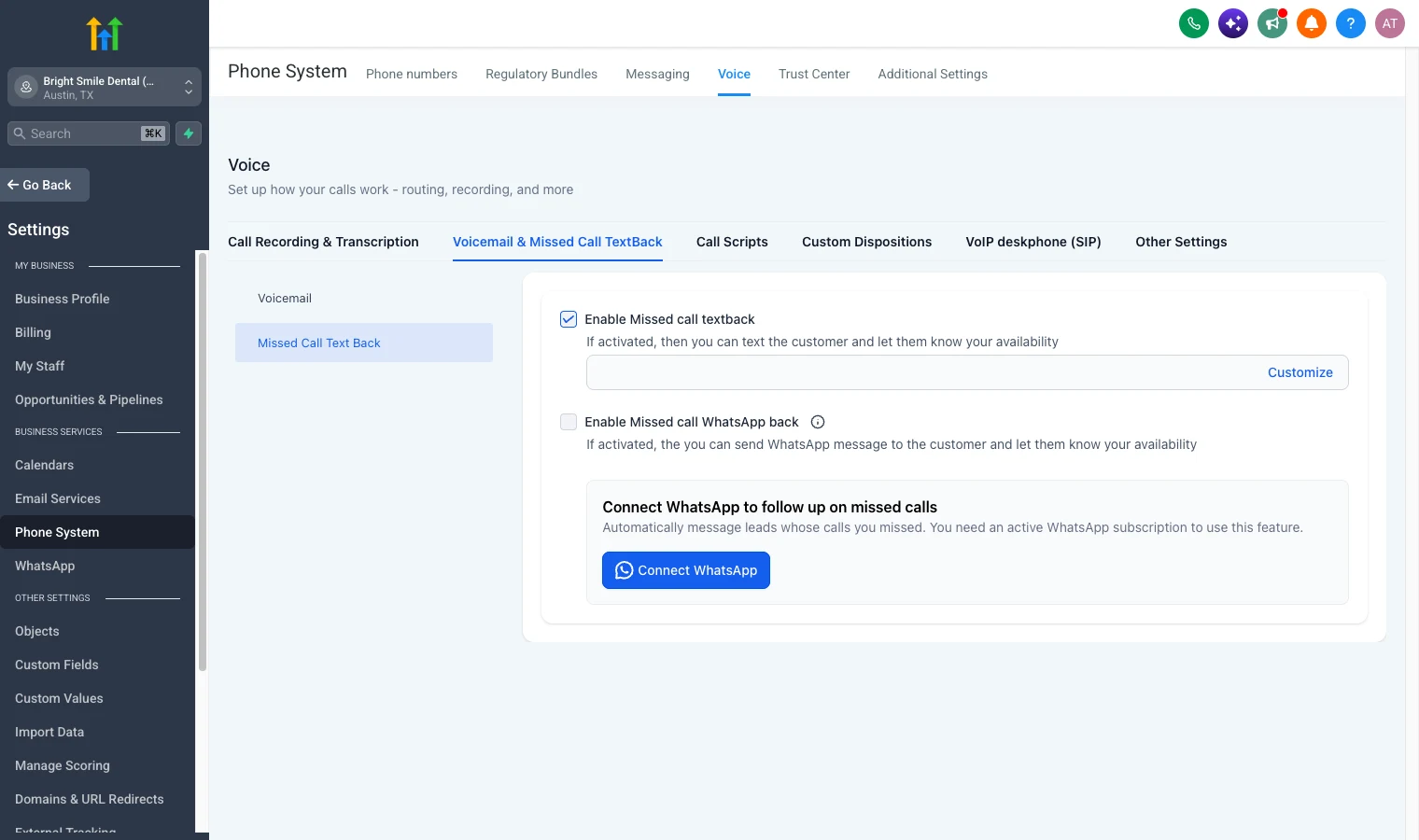
That is the complete setup. Any inbound call that rings past your timeout without an answer will now trigger that message.
The same panel holds the incoming call timeout, which sets how long the phone rings before a call counts as missed. HighLevel suggests 10 to 20 seconds. This path follows HighLevel's setup article, checked 3 October 2026.
Method 2: Workflow builder (for business-hours filtering and advanced routing)
Use this path when you need to send different messages based on time of day, apply tags, or chain follow-up steps. The workflow trigger is Call details, filtered to incoming calls that were not answered.
- Go to Automations > Workflows and click + Create Workflow.
- Select Start from Scratch or search the template library for the pre-built Missed Call Text Back recipe.
- Click Add New Trigger and select Call details.
- In the trigger filters, set Call Direction to incoming, then under Call Details choose the missed outcomes, such as not answered, busy and voicemail.
- Set Allow Re-Entry to off to prevent repeat texts if the same contact calls multiple times. HighLevel also suggests a Wait step of around 20 minutes, or tags, for repeat callers.
- Click + Add Action and choose Send SMS.
- Write your message in the SMS action. Use
{{contact.first_name}}and other custom values to personalize. - To send a different message outside opening hours, add an If/Else action before the SMS step. Build the condition from HighLevel's time comparison fields, Current Day of the Week and Current Hour, so one branch matches the hours you are open. Write a separate message for each branch, or end the workflow for calls that come in outside hours.
- Publish the workflow. Test by calling the number from a mobile and letting it ring through to voicemail.
What should the missed call text-back message say?
The best-performing messages are short, personal, and end with a specific ask. In our setup, the core formula is: acknowledge the missed call, name the business, and invite a reply.
A solid starting template:
Hi
{{contact.first_name}}, this is [Business Name]. We just missed your call and want to help. Reply here and someone from our team will be with you shortly.
Keep the message under 160 characters where possible so it sends as a single SMS segment. Avoid URLs in the first message since some carriers flag first-touch messages containing links. The goal of this first message is a reply, not a click.
For after-hours or weekend callers, a different tone works better:
Hi
{{contact.first_name}}, we missed your call. Our office is closed right now but we will follow up first thing in the morning. Reply any time.
Avoid vague openers like "How can we help?" A specific prompt ("Reply here and we will call you back within the hour") converts better. The contact is still in intent mode from the call. Meet them there.
Two things to avoid in the message: invented urgency claims and any phrasing that implies GoHighLevel authorization or endorsement. Keep it grounded in what your business actually does.
Does missed call text-back work for after-hours calls?
Yes. The native toggle fires on every missed call regardless of time of day or day of week. This is the right default for most businesses: a caller who dials you at 9pm is actively looking for help and will appreciate the acknowledgment even if you cannot respond immediately.
For businesses where an after-hours text creates the wrong expectation, the workflow approach with an If/Else branch on Current Day of the Week and Current Hour lets you send a different message outside business hours, delay the text until morning, or skip it entirely and fire a voicemail follow-up instead.
The If/Else action compares the current day and hour against the values you enter, so set the branch to your real opening hours and update it when they change.
A practical three-branch setup for service businesses:
- During hours: "We missed your call. Expect a callback within 15 minutes. Or reply here to chat now."
- After hours: "We missed your call. Our team is offline right now. We open at [time] and will follow up then."
- Weekend: "We missed your call. We are closed today but will reach out first thing Monday."
Branch these inside a single workflow using nested If/Else conditions on Current Hour and Current Day of the Week.
How much does missed call text-back cost in GoHighLevel?
The missed call text-back feature is included in every GoHighLevel plan, starting with the Starter plan at $97 per month. There is no additional feature charge to activate it.
The only ongoing cost is standard SMS usage. GoHighLevel bills SMS through its Twilio-powered messaging infrastructure. A standard 160-character message to a US number counts as one segment. Messages with merge fields that expand past 160 characters, or messages containing Unicode characters, count as multiple segments.
For current per-message rates, check the GoHighLevel pricing page. SMS costs are usage-based and visible in the billing section of your account.
One requirement that catches teams off guard: A2P 10DLC registration is required for US numbers to deliver missed call texts reliably. Without it, delivery rates drop significantly. If you have not registered yet, our GoHighLevel A2P registration guide covers the full process step by step.
FREE FOR 30 DAYS
Get your first month of GoHighLevel free
- Every feature, on any plan
- A full month, worth up to $497
- Cancel before day 30, pay nothing
Card required. Nothing charged for 30 days.
Join 2.2 million businesses already running on GoHighLevel
Tips for getting more from missed call text-back
Activate it immediately when connecting a phone number. The native toggle should be the first thing you switch on when setting up a new sub-account or adding a client number. There is no downside to having it on.
Test before going live. Call the number from a mobile phone and let it ring through to voicemail. Confirm the text arrives within 30 seconds. If it does not arrive, check four things: A2P 10DLC registration status, whether Missed Call Text Back is enabled in your Phone System settings, whether the contact has opted out of SMS, and whether both the native toggle and a workflow are running simultaneously.
Connect it to Conversation AI. GoHighLevel's Conversation AI can pick up the reply the moment the contact texts back, qualify the lead, and book an appointment without any human involvement. Missed call text-back combined with Conversation AI is the setup we recommend to agencies who want to close leads while they sleep.
Use it as the entry point for a nurture sequence. In the workflow version, add follow-up SMS or email steps after the initial text. A contact who replies enters a qualifier sequence; a contact who does not reply can receive a second nudge 24 hours later via a wait step.
Do not use it in isolation. Missed call text-back opens a conversation. Something needs to be on the other end of that conversation to close it. Make sure your Conversations inbox is staffed, or wire an AI agent to handle replies before a human picks up the thread.
The GoHighLevel automation workflows guide covers how to build out the multi-step follow-up sequences that sit downstream of the text-back.
For agencies evaluating whether GoHighLevel fits their client stack, the GoHighLevel review covers the full platform, and the best CRM for agencies roundup compares it against the alternatives.
Frequently Asked Questions
Does GoHighLevel automatically send a missed call text?
Can I send a different missed call text outside business hours?
Why is my missed call text-back not sending?
Does missed call text-back work on all GoHighLevel plans?
How do I stop a contact from getting the same text every time they call?
GoHighLevel's 30-day extended trial gives full access to missed call text-back, the workflow builder, Conversation AI, and every other feature. The setup described above works from day one, and the card on file is not charged during the trial.
PARTNER OFFER
Your first month of GoHighLevel is free.
Through our partner link you get 30 days on any plan, double the standard 14-day trial. Build something real before you pay a cent.
Claim my free monthCard required. Nothing charged for 30 days.
DO THIS NEXT, FREE FOR 30 DAYS
The quickest way to know is to try it on real work.
- STEP 1Claim your free month
- STEP 2Rebuild one thing from this guide
- STEP 3Decide before day 30
Free for 30 days from the day you start. Card required.
Featured in Forbes and Business Insider.
Ashley Kemp is a digital entrepreneur and perpetual traveller. Switched from ClickFunnels to GoHighLevel years ago and never looked back. Writing about what actually works.
Was this article helpful?