Updated 9 October 2026tutorial
GoHighLevel AI Studio Tutorial: Build a Paid App (2026)
A GoHighLevel AI Studio tutorial: we built a members app with logins, a database, file uploads and a checkout in our demo account, with every screen.
 Ashley Kemp22 min read
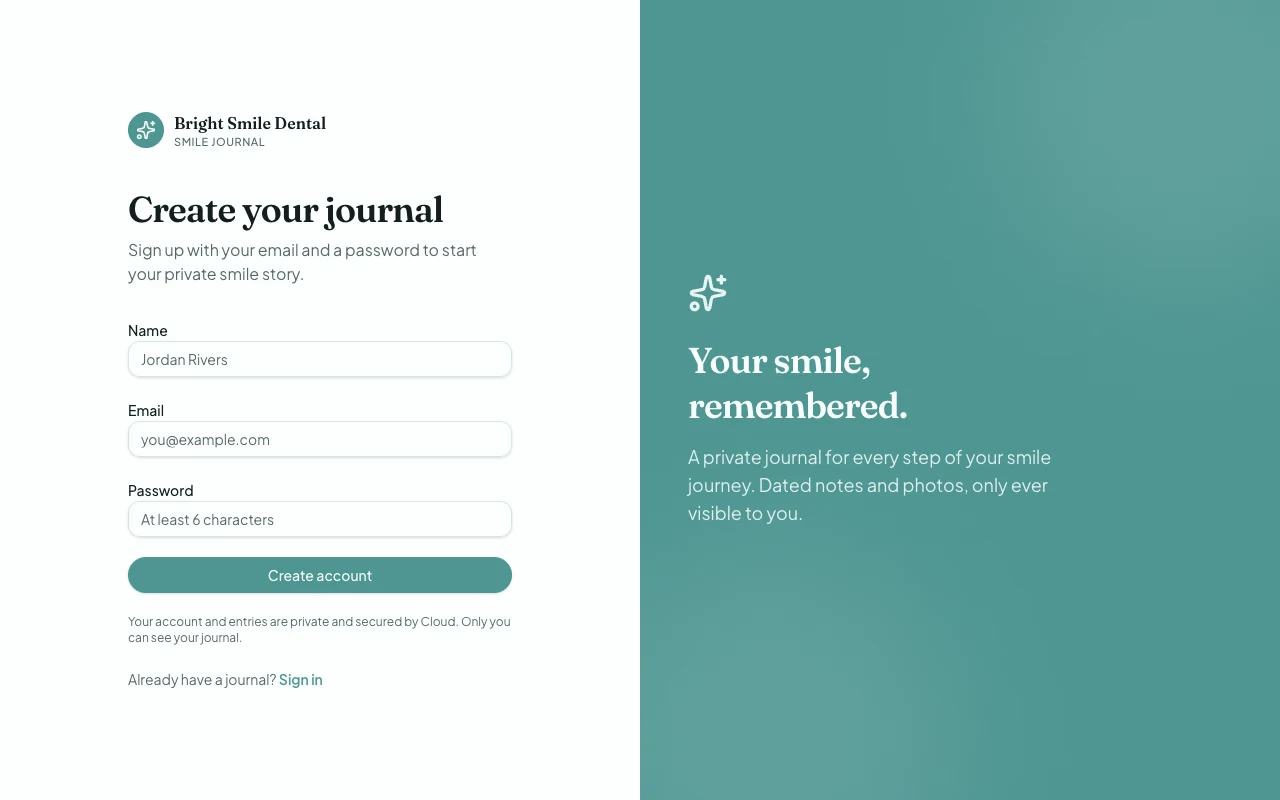
How do you build an app with GoHighLevel AI Studio?
Open AI Studio in a sub-account and describe the app in one prompt, including who signs in and what they save. When the first build finishes, switch on Cloud under More, Cloud, so the app gets a real database, user accounts and file storage. To sell from the app, add a product to your Payments catalog, turn on Payments under More, Payments, pick the product and price, then ask the agent to add a shop and checkout. Publish, and every visit and opt-in shows up under More, Analytics.
Info
Affiliate disclosure. This page contains affiliate links for GoHighLevel. If you sign up through them we may earn a commission at no cost to you. Every screenshot comes from our own GoHighLevel demo account, Bright Smile Dental, captured on 9 October 2026, and every feature described is linked to HighLevel's documentation under Sources.
PARTNER OFFER
Your first month of GoHighLevel is free.
Through our partner link you get 30 days on any plan, double the standard 14-day trial. Build something real before you pay a cent.
Claim my free monthCard required. Nothing charged for 30 days.
Until this week, GoHighLevel's AI Studio built pages. Good ones: we built a dental practice website with it at the start of October. What it couldn't do was remember anyone. There was no login, nowhere to store what a visitor typed, and no way to take money inside the thing you built.
That changed in two days. On 8 October HighLevel shipped Payments and Analytics for AI Studio. On 9 October it shipped Cloud, which gives every project a database, user accounts and file storage. Put together, an agency can now build a members app, a client portal or a paid tool inside the same GoHighLevel account that already holds the CRM, the calendar and the email.
So we built one. The demo account belongs to a fictional Austin practice, Bright Smile Dental, and the app is Smile Journal: patients sign up, keep a private journal of their whitening progress with photos, and can buy a $49 Whitening Top-Up Kit from a shop page. This tutorial walks through every step we took, including the one place AI Studio surprised us.
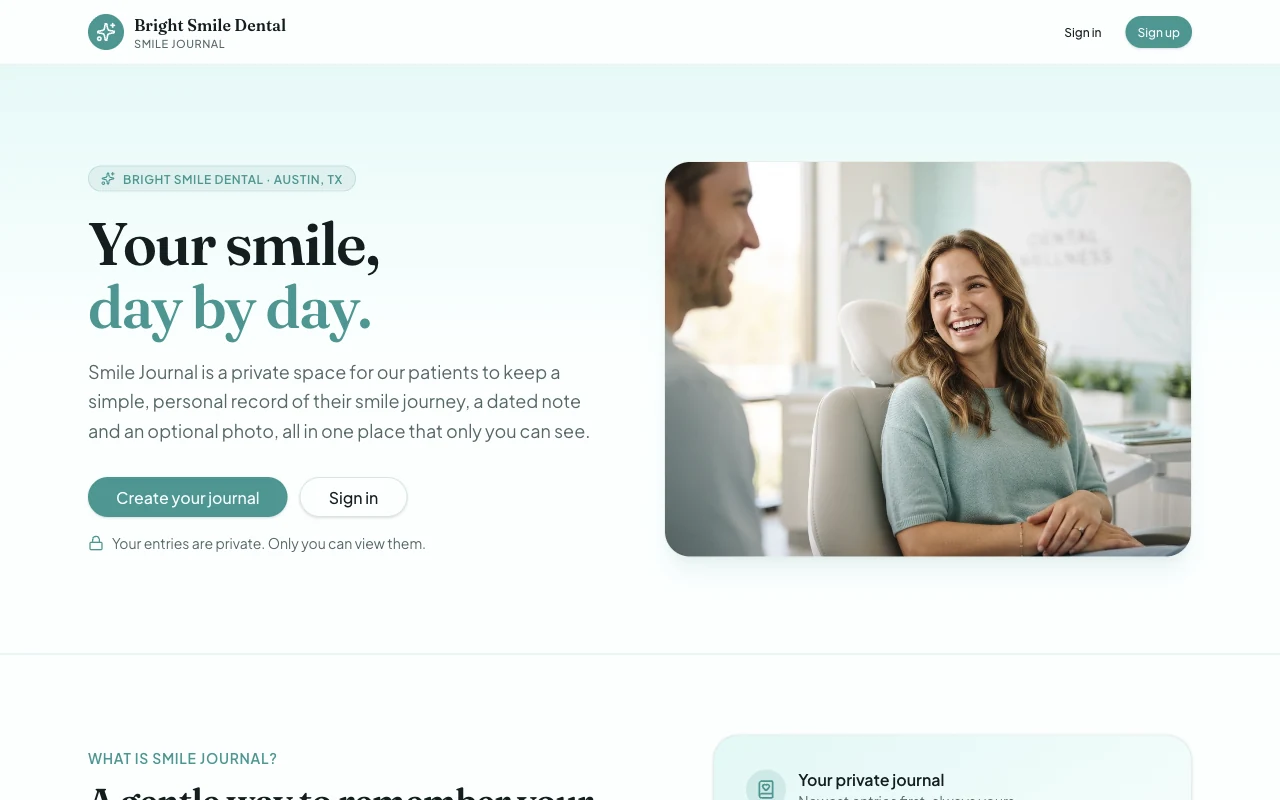
What changed in GoHighLevel AI Studio in October 2026?
Three releases turned AI Studio from a page builder into an app builder. Each one adds a tab under More inside the project:
| Release | Date | What it adds | Where it lives |
|---|---|---|---|
| Cloud | 9 October 2026 | A database, user accounts with email and password sign in, and file storage | More, Cloud |
| Payments | 8 October 2026 | A hosted checkout for products in your GoHighLevel catalog, with coupons, subscriptions and one-click upsells | More, Payments |
| Analytics | 8 October 2026 | Page views, opt-ins and opt-in rate on every published site, with no tracking code | More, Analytics |
All three need a project built on TanStack Start, which is what new AI Studio projects use. Older React projects can be upgraded with Migrate to SSR under Project Settings, which makes an upgraded copy and leaves the original live. Our AI Studio pricing and features guide covers each release in more detail.
Step 1: Describe the app in one prompt
Open AI Studio from the sub-account sidebar and type what you want on the home screen. The more the prompt says about who signs in and what they save, the better the first build. This is the prompt we used, word for word:
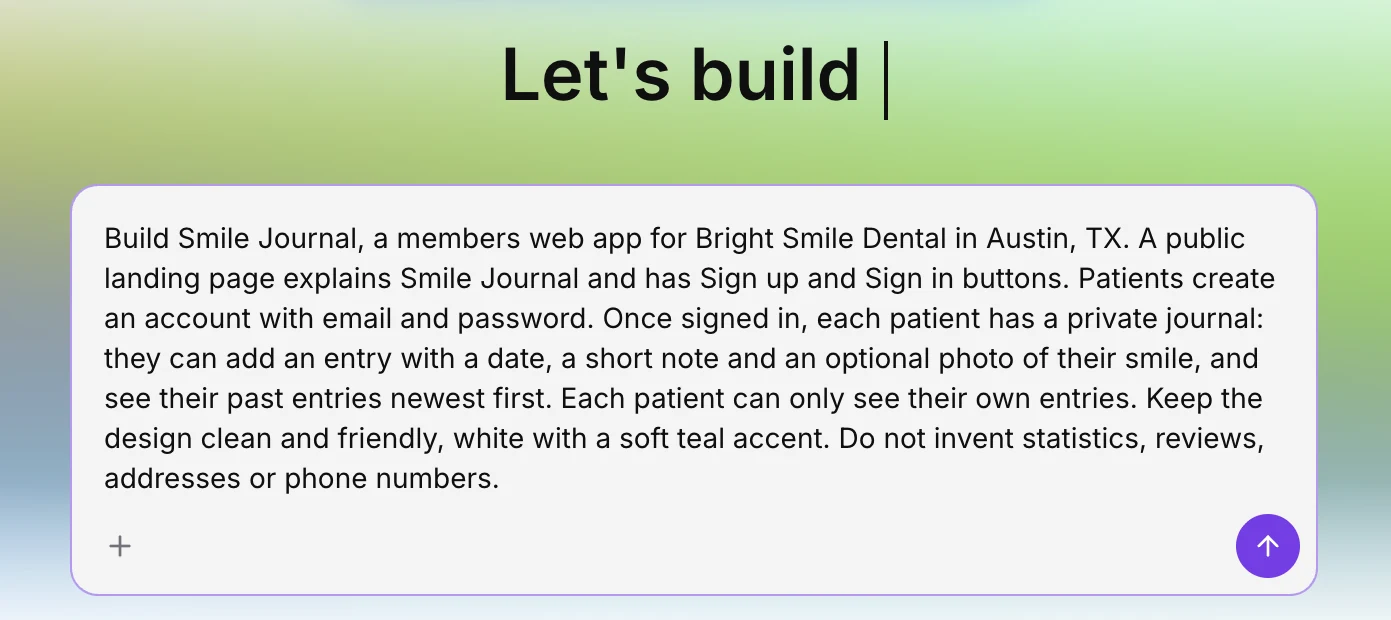
Three habits make the first build cleaner:
- Name the users and the data. "Patients create an account" and "each patient can only see their own entries" told the agent it needed accounts and per-user privacy.
- Describe the look in a sentence. "Clean and friendly, white with a soft teal accent" was enough for a consistent design.
- Tell it what not to make up. On our earlier website build, AI Studio invented a star rating, an address and a phone number. This time we asked it not to, and it didn't.
AI Studio thought for about a minute, wrote a six item plan and started building. It finished in roughly five minutes and reported "33 tools used", with all four routes checked: the landing page, sign up, sign in and the journal.
Step 2: Switch on Cloud before you rely on the logins
This is the step most people will miss. Our prompt asked for real accounts, but Cloud was not switched on for the project yet, so the plan's second item read "Demo auth: localStorage storage". The first build saved accounts and journal entries in the visitor's own browser, which is fine for a click-through demo and no use for real patients.
AI Studio was upfront about it. Its summary said the accounts "currently live in the browser" and put a Connect Cloud button right under the message:
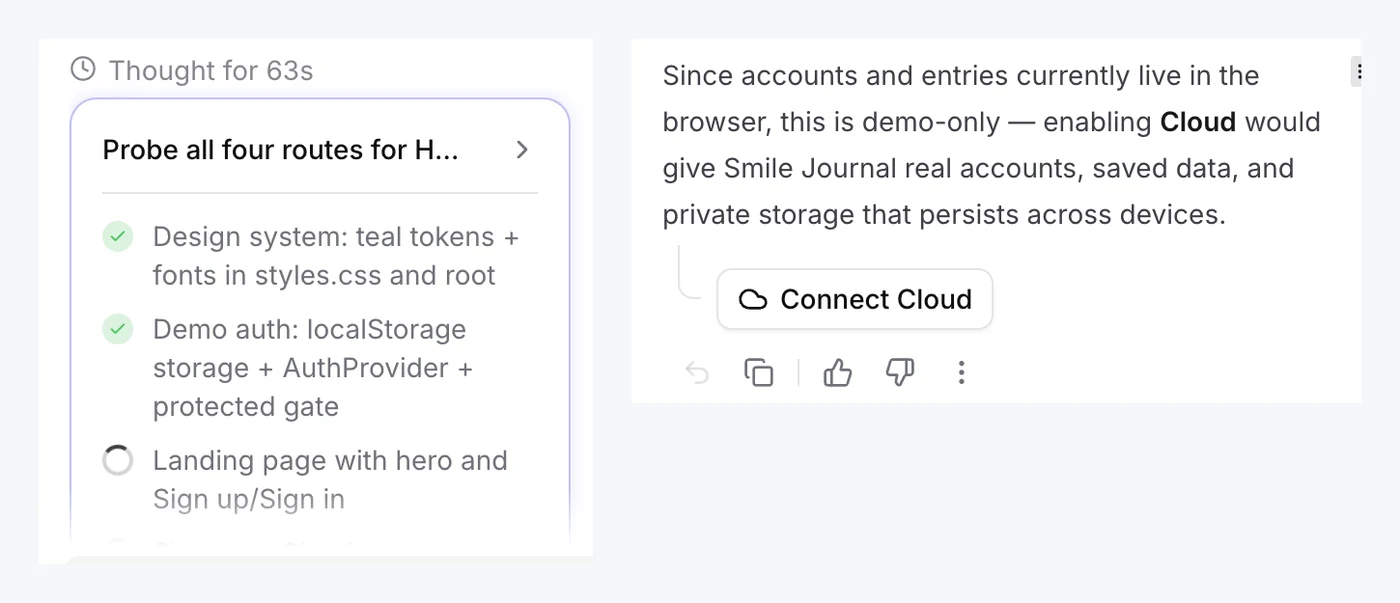
Clicking it opens More, Cloud, Overview, where one button switches Cloud on:
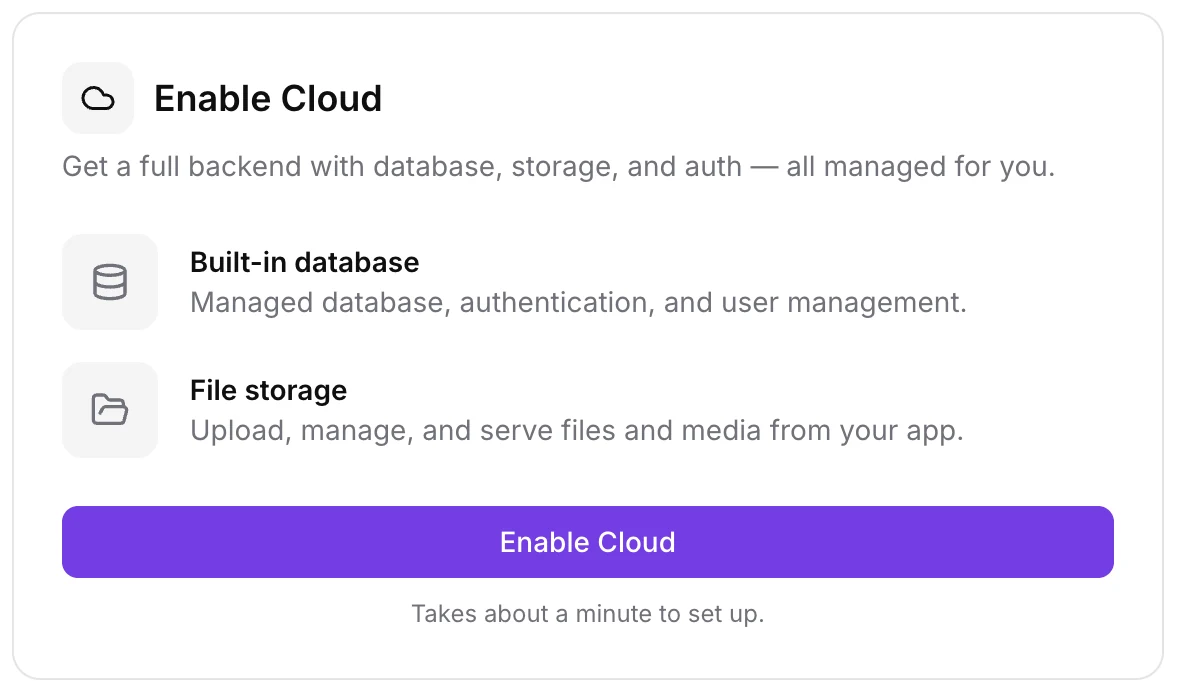
Cloud was connected inside two minutes. Without another prompt, the agent carried on and moved the app across: it created a journal_entries table, locked it so each patient can only read their own rows, made a private smile-photos storage bucket with per-user folders, and rewrote sign up and sign in to use Cloud. That pass took about ten minutes and 27 tool calls.
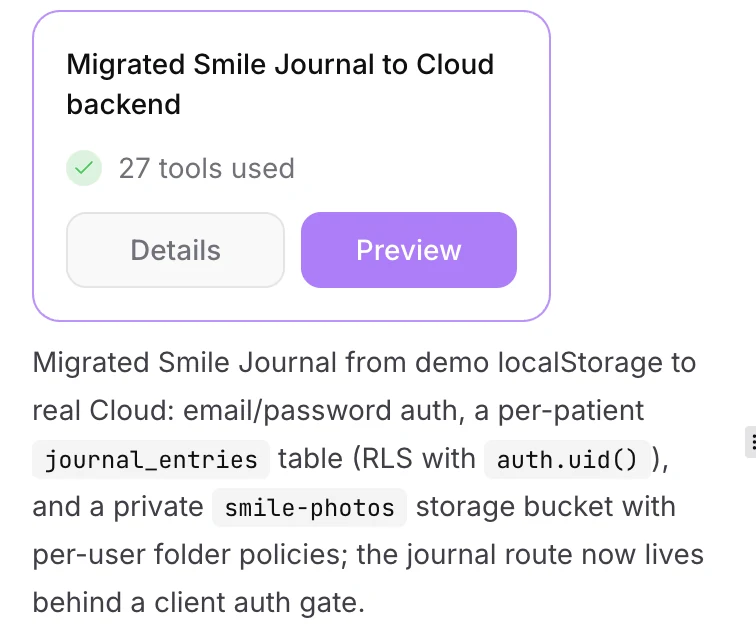
If you are starting a new app that needs logins, switch Cloud on first or say "use Cloud for accounts and data" in your first prompt, and you skip the demo version entirely.
Step 3: Check the database, users and storage
The Cloud overview shows everything the app now runs on. Ours read: Connected, Tiny instance, 0.25 GB of 2 GB disk, one table, no sign ups yet and one bucket.
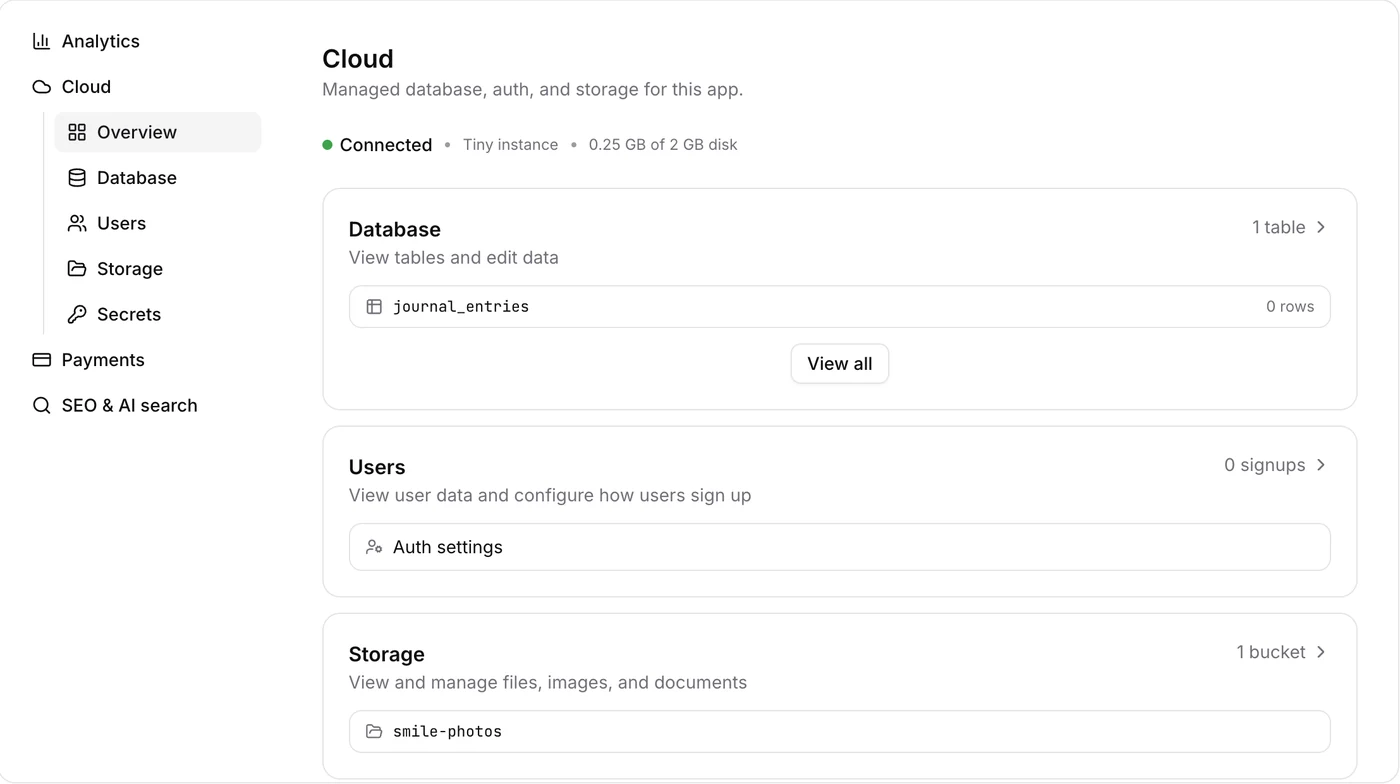
Each part has its own tab:
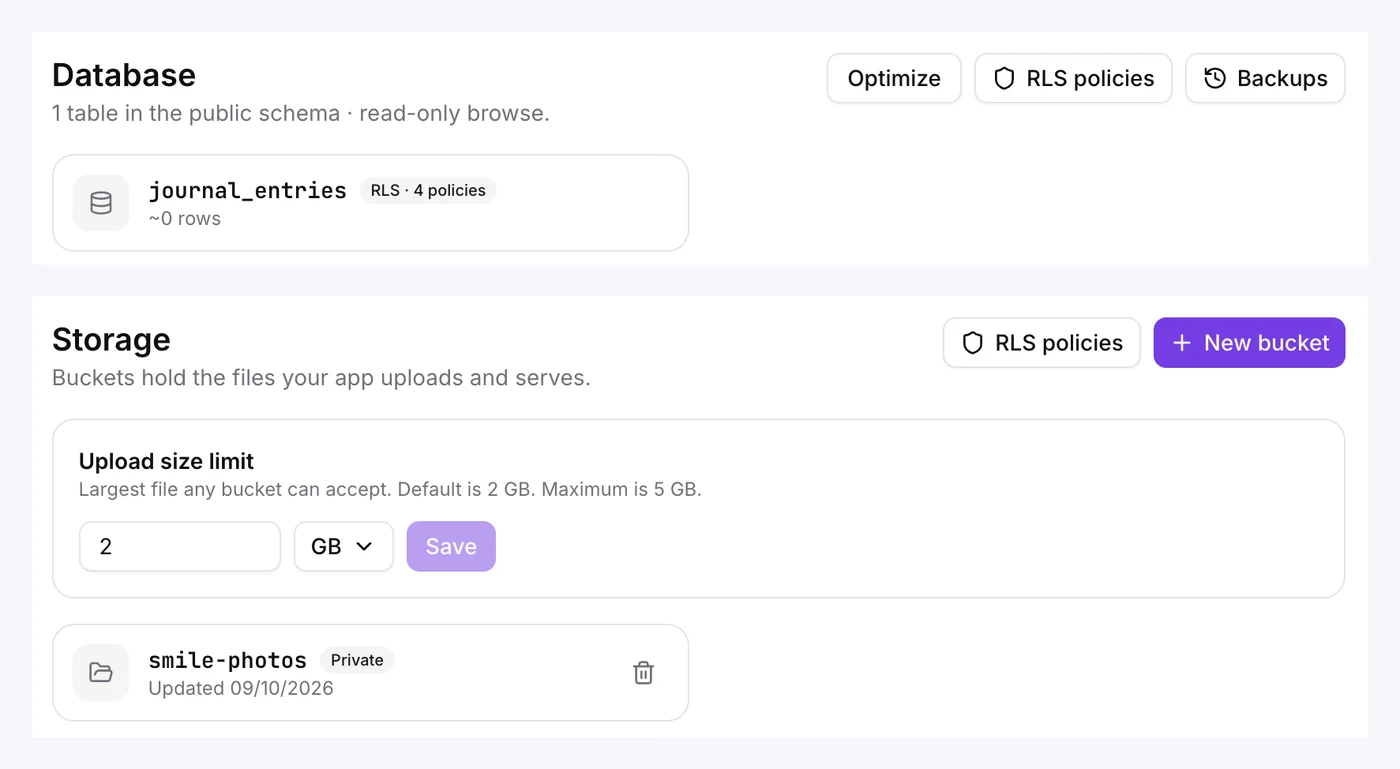
- Database. Lists each table with a row count and its row-level security status. Ours showed
journal_entrieswith "RLS · 4 policies", the rules that keep each patient to their own rows. There are buttons for RLS policies, Backups and Optimize. HighLevel takes daily backups of the schema and rows. - Users. A sign up chart, a searchable list and Auth settings, where you can require email confirmation, turn new sign ups off, set password rules and reject passwords found in public data breaches. Sign up, invitation and password reset emails go out through the account's own email.
- Storage. Buckets for uploads, each public or private. The upload size limit defaults to 2 GB and goes up to 5 GB.
You don't write any of this by hand. To change the schema, ask in the chat, for example "add a mood field to journal entries", and AI Studio writes the table change and the policies. We confirmed the journal was protected by opening its address in a fresh browser: it redirected straight to the sign in page.
What does GoHighLevel AI Studio Cloud cost?
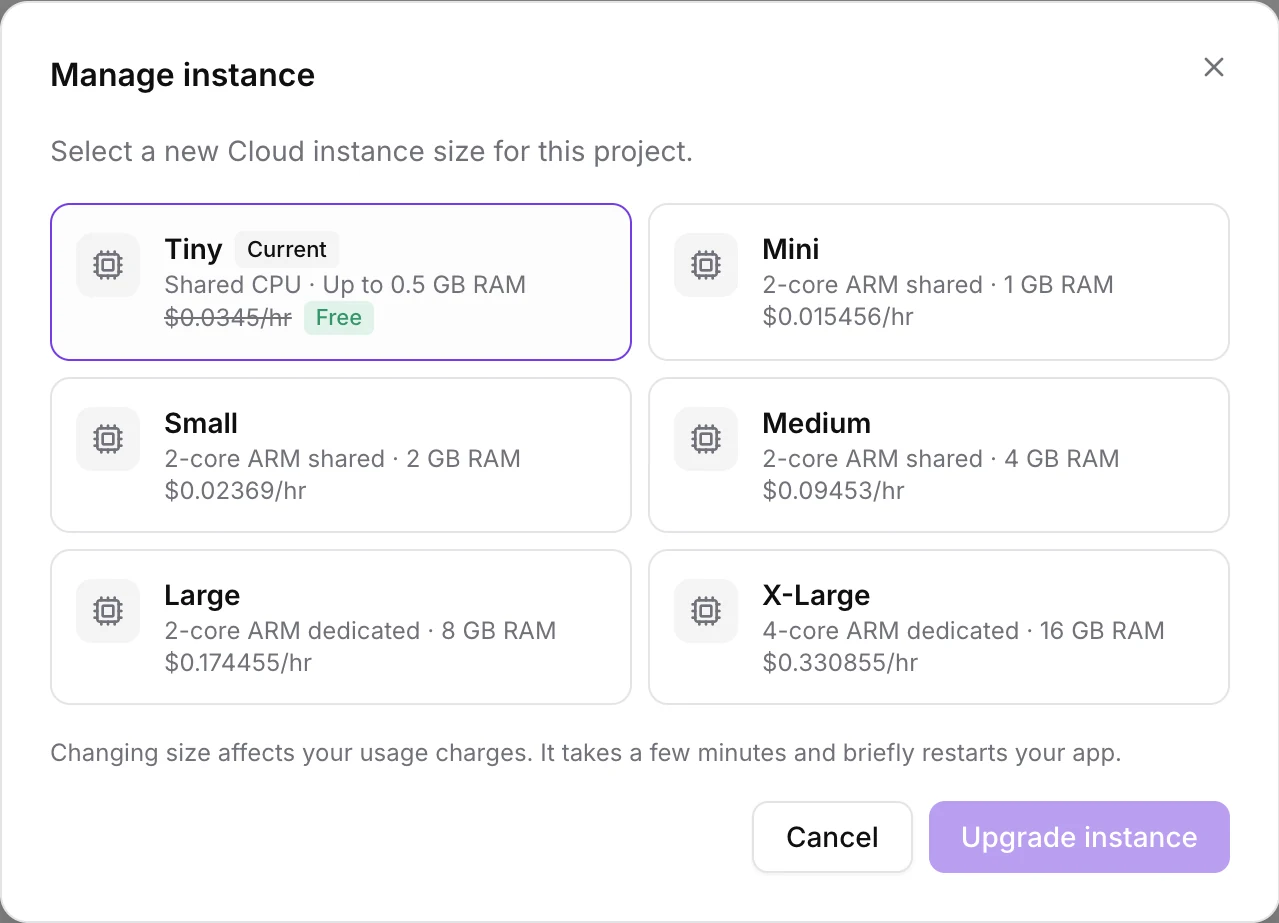
The Tiny database size is free, and it is what every project starts on. Bigger sizes are billed by the hour from your wallet. HighLevel's help article does not list the rates, but the app does: open More, Cloud, Advanced settings and click Manage next to Database size. These are the prices our account showed on 9 October 2026:
| Size | Compute | Price per hour | About per month (730 hours) |
|---|---|---|---|
| Tiny | Shared CPU, up to 0.5 GB RAM | Free (list price $0.0345) | $0 |
| Mini | 2-core ARM shared, 1 GB RAM | $0.015456 | $11.28 |
| Small | 2-core ARM shared, 2 GB RAM | $0.02369 | $17.29 |
| Medium | 2-core ARM shared, 4 GB RAM | $0.09453 | $69.01 |
| Large | 2-core ARM dedicated, 8 GB RAM | $0.174455 | $127.35 |
| X-Large | 4-core ARM dedicated, 16 GB RAM | $0.330855 | $241.52 |
A few billing details from HighLevel's Cloud release notes:
- Database storage is separate. It is billed hourly for the space you reserve, can grow but never shrink, and our project started at 0.25 GB of a 2 GB disk.
- File storage is pay for what you store. It grows and shrinks with your uploads.
- Size changes take a few minutes and briefly restart the app. You can change size once an hour.
- Nothing is deleted if the wallet runs dry. Cloud pauses, and Wake up brings it back once billing is sorted.
Building the app itself draws on your AI plan. HighLevel's AI Studio pricing article gives example sessions of $0.60 for a landing page, $1.10 for a seven page website and $1.30 for an image-heavy page, and says AI-generated images are often the biggest part of the cost. The AI Employee plans at $50 or $97 a month per sub-account include AI Studio usage if you would rather not pay per build.
Step 4: Add a product and switch on Payments
Payments sells products from the sub-account's existing catalog, so the product comes first. We created the Whitening Top-Up Kit under Payments, Products as a one-time $49 product. It takes a name and a price.
Then, in the project, open More, Payments and click Enable Payments. The panel shows the mode (Test or Live), the payment method, and the products the app may sell. Click Add products, tick the product, then choose how checkout prices it:
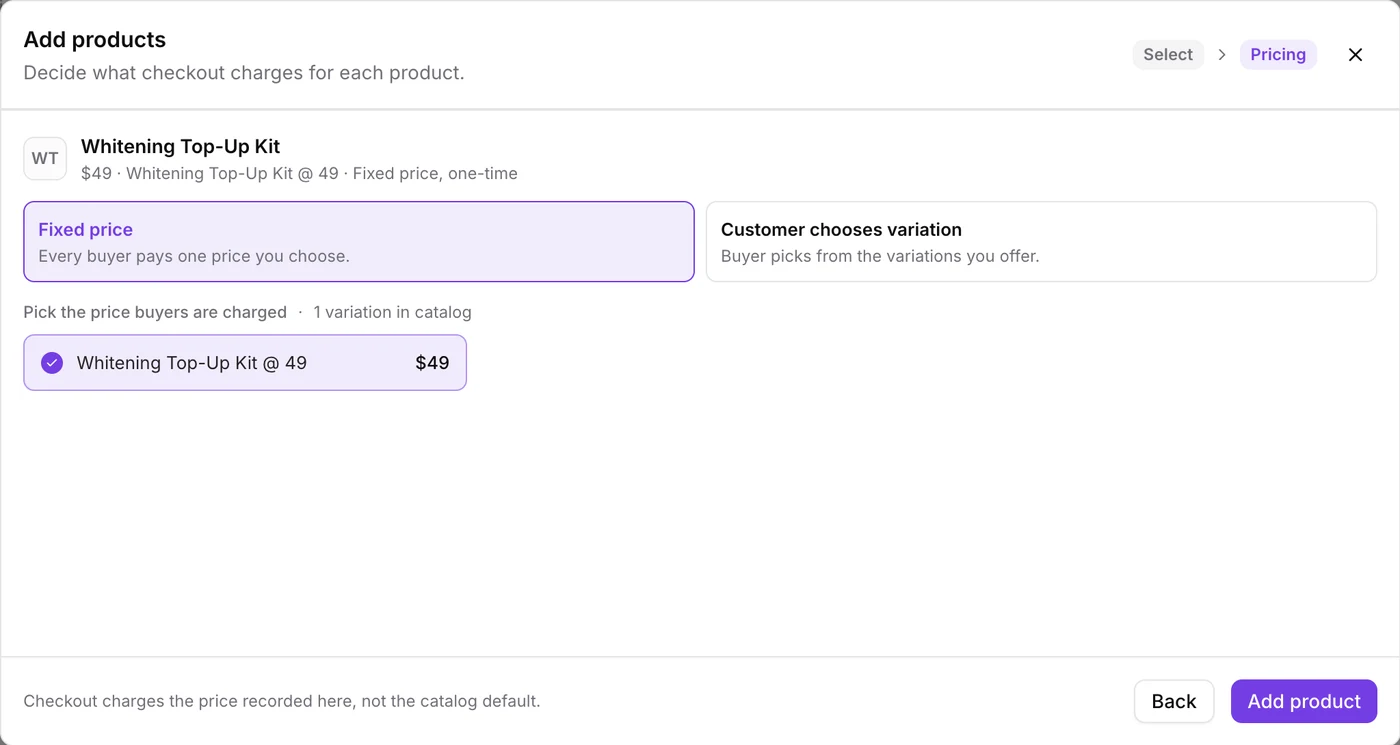
- Fixed price charges every buyer the one price you pick.
- Customer chooses variation lets the buyer pick a size, tier or plan from the variations you allow.
The app can only show and charge the products and prices you add here. HighLevel's wording on the panel is that checkout charges the price recorded in the app, not the catalog default, so a later catalog edit doesn't change what the app charges.
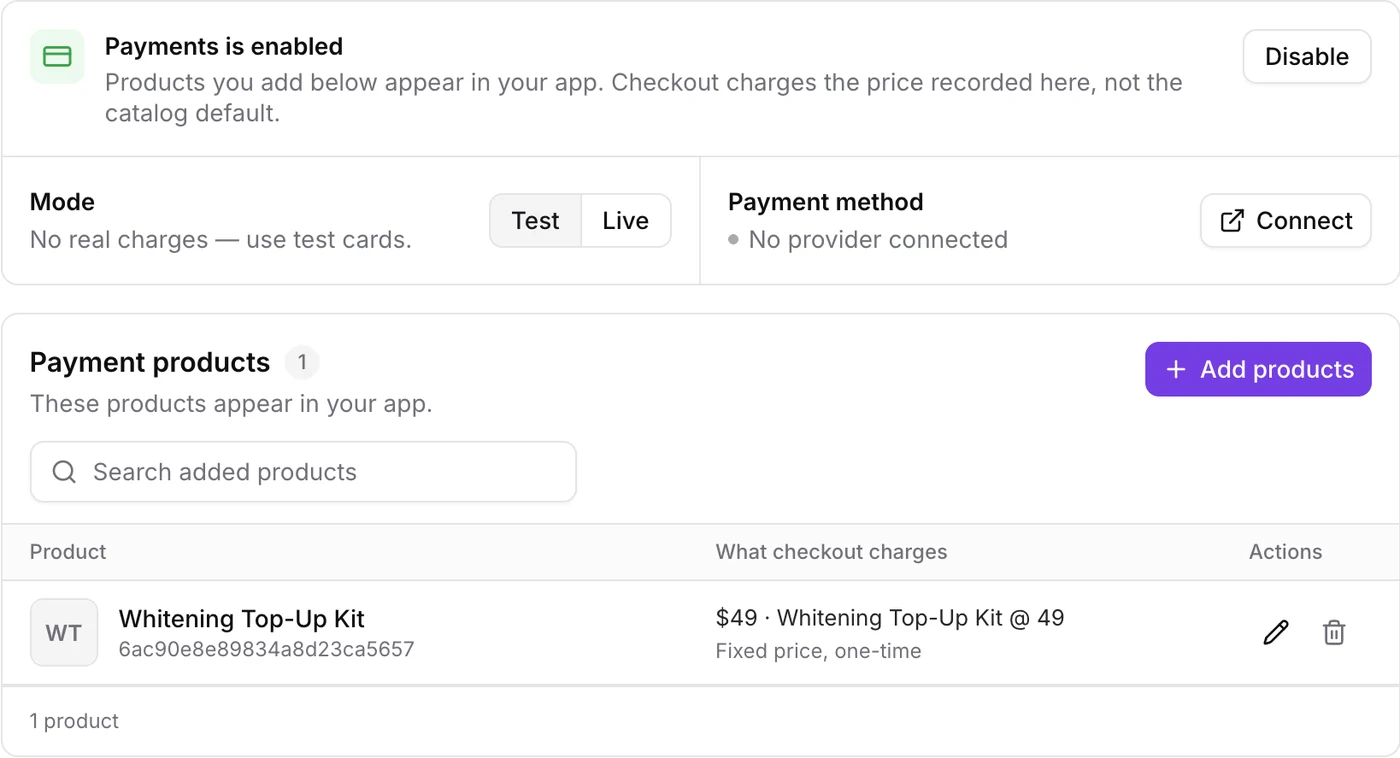
Start in Test mode. When we began, our demo account had no payment provider connected, which the panel shows clearly, with a Connect button that opens the sub-account's payment integrations. We connected Stripe there with both live and test mode, and the panel then read Stripe as the payment method. Stripe, Square, Authorize.net, NMI, PayPal and Mercado Pago all connect there.
Step 5: Ask the agent to build the shop and checkout
With the product in place, we sent one message: "Add payments. Create a Shop page, linked from the header, that sells the Whitening Top-Up Kit with a Buy now button that opens checkout. Keep the same design and no em dashes."
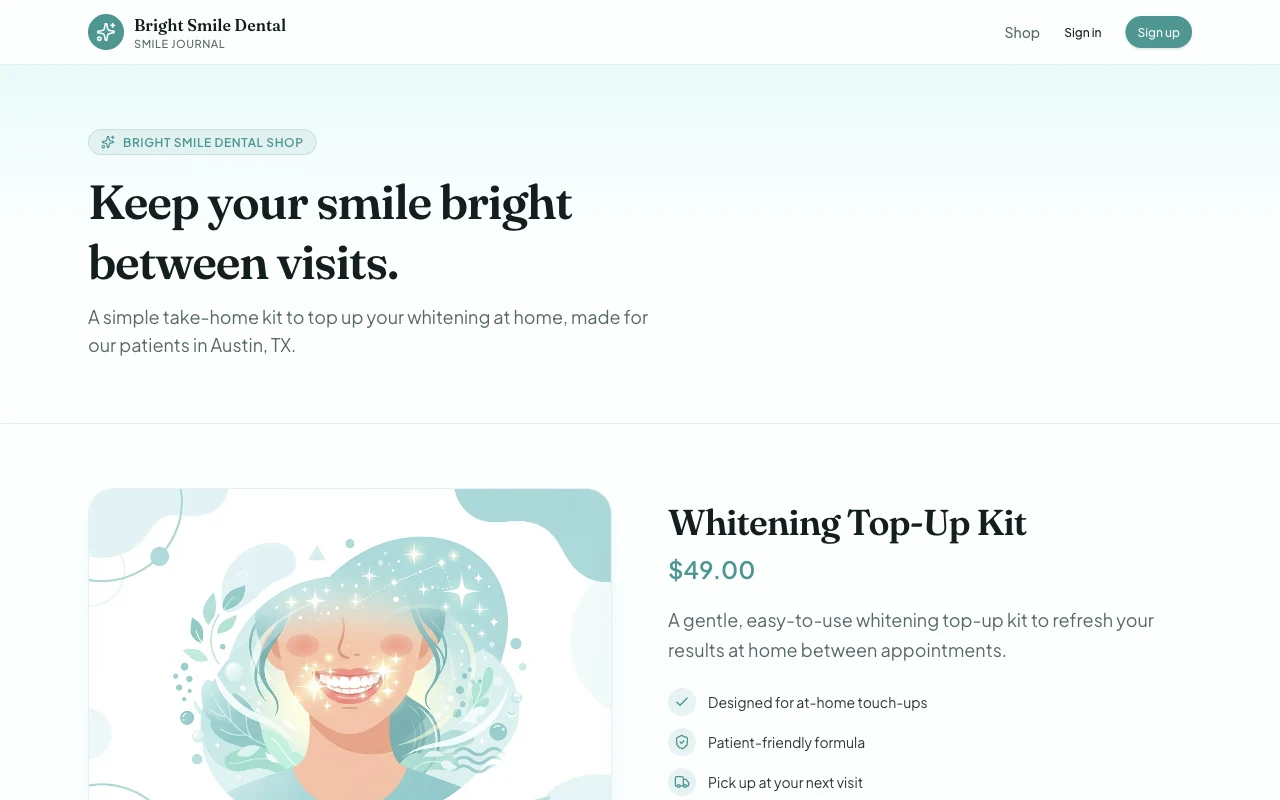
That took 17 tool calls. AI Studio added a Shop link to the header, a product page with an image, the $49 price and three short benefit lines, and a Buy now button that opens a checkout route.
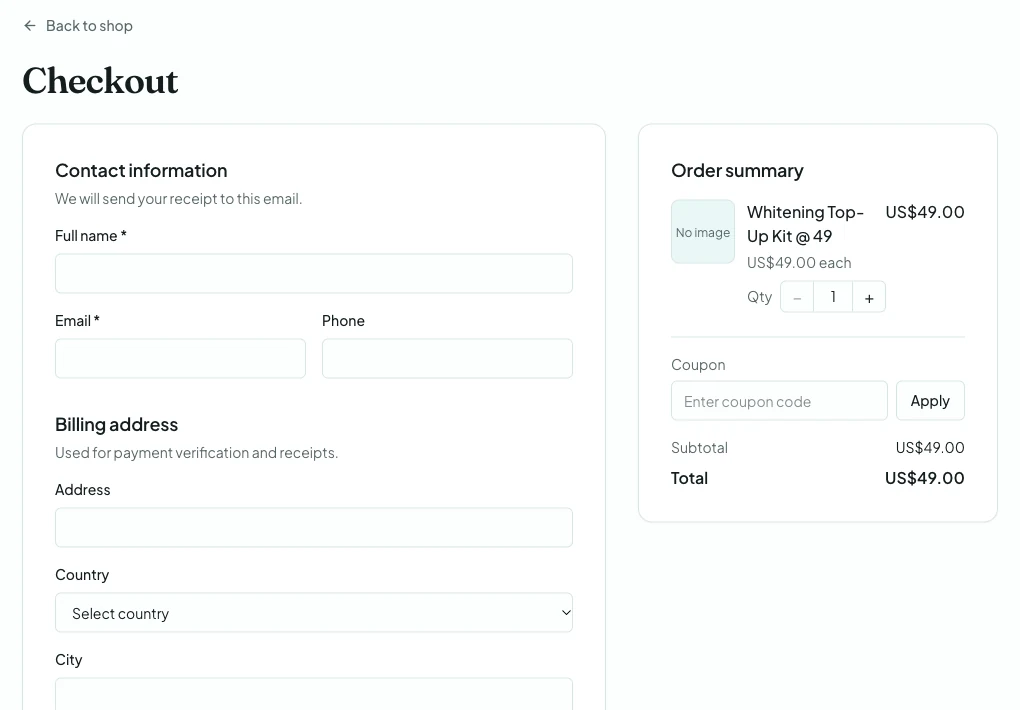
The checkout comes from HighLevel, not from code the agent writes. That matters for three reasons:
- Card details never touch the app's code. They go through HighLevel's hosted checkout.
- The agent can't break it. HighLevel manages the payment code and reverts accidental edits on the next turn.
- The extras are already there. Coupons, PayPal express checkout, subscriptions, a Cloudflare bot check on every purchase, and one-click upsells after the first order on saved cards from Stripe, Square, Authorize.net, NMI, Adyen and Mercado Pago.
Once Stripe was connected, the checkout loaded Stripe's card form with a Test mode badge, so no real card can be charged:
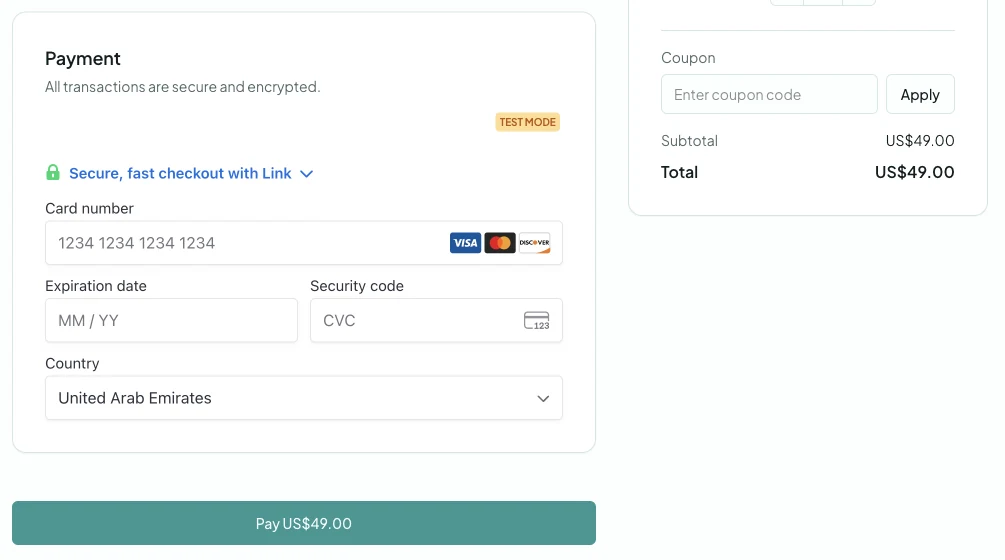
We paid with Stripe's published test card (4242 4242 4242 4242, any future expiry, any CVC). The order showed up in the sub-account straight away, with the app's name as the source, and the payment as a succeeded Stripe transaction:
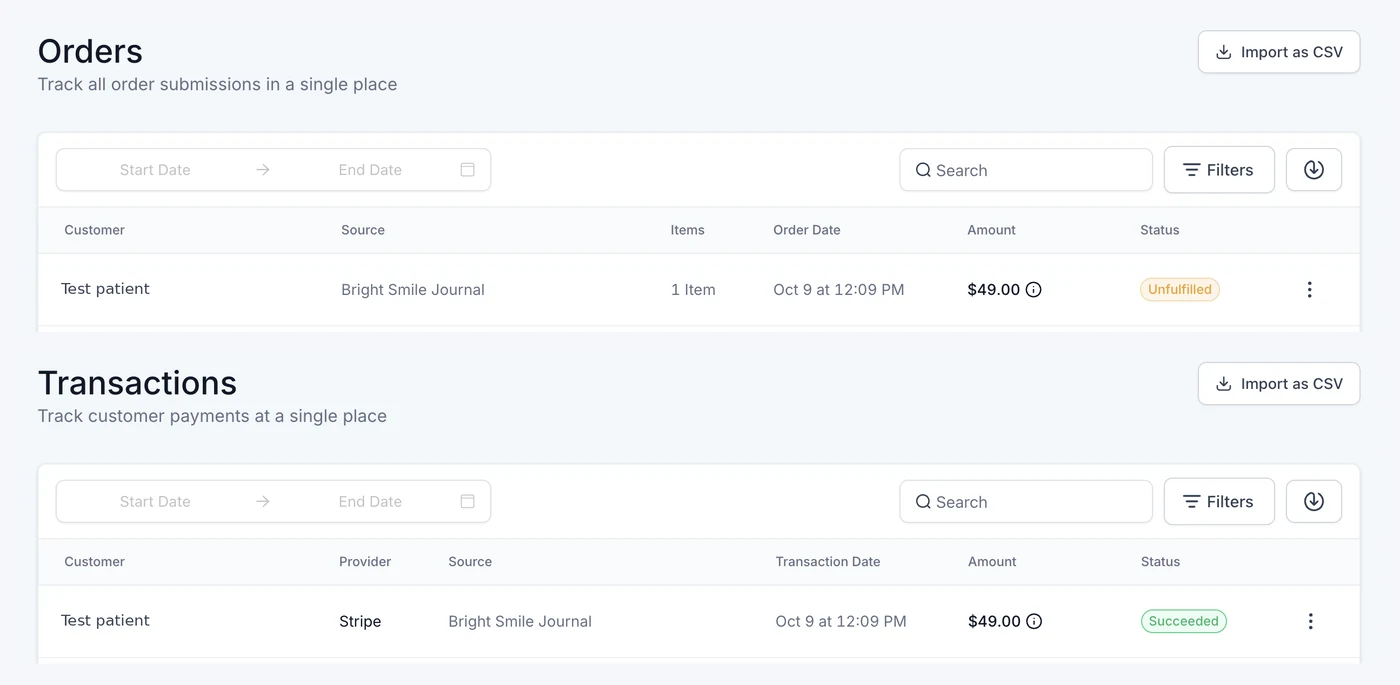
That is the part a standalone app builder can't give you without extra wiring: the sale, the customer and the payment are already in the client's GoHighLevel account, ready for a fulfilment workflow, a receipt email or a follow-up sequence. When your test order has gone through, switch the project's Payments mode to Live.
FREE FOR 30 DAYS
Get your first month of GoHighLevel free
- Every feature, on any plan
- A full month, worth up to $497
- Cancel before day 30, pay nothing
Card required. Nothing charged for 30 days.
Join 2.2 million businesses already running on GoHighLevel
Step 6: Publish and read the analytics
Every published AI Studio site now tracks itself. Open More, Analytics, Overview for page views, unique visitors, opt-ins and opt-in rate, compared with the previous period, plus top pages, time on page, traffic sources, devices, browsers and locations. Form Submissions lists every lead the site's forms collected, each linked to its contact.
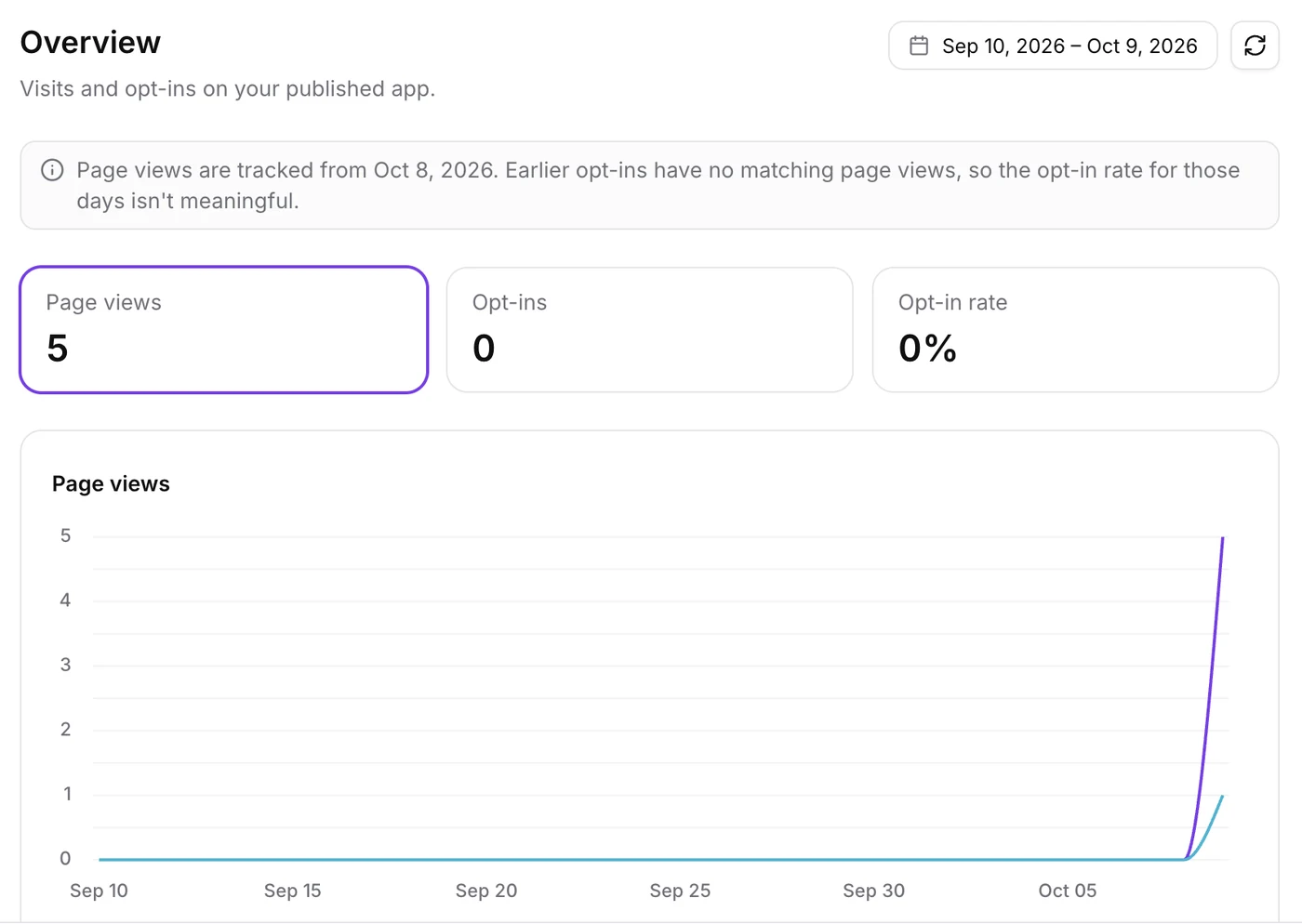
Publishing takes one click. Publish offers a free address on vibepreview.app (ours was bright-smile-journal.vibepreview.app) or Add custom domain, and the app was live in seconds. We opened five pages ourselves, and about a minute later the Overview showed 5 page views, split by page (two on the home page, one each on the shop, sign up and sign in), with device, browser, visitor IP and country breakdowns underneath. Two more places to look once a site is live:
- Sites, Analytics, AI Studio puts every AI Studio site next to your funnels and websites.
- Contacts, contact details, Activity shows the pages a contact viewed, where they came from and the form they submitted.
Forms connected before 8 October still count opt-ins. To tie older submissions to page views, ask AI Studio to reconnect form tracking and publish again.
What to check before you publish
AI Studio does most of the work, and a five minute review catches the rest:
- Read every line of copy. The prompt that banned invented statistics worked, but the shop page still added benefit lines we never gave it, such as "Patient-friendly formula". Check product claims, opening hours and anything a client would be held to.
- Run the security advisor. If Cloud finds a problem, a card appears on the Cloud overview. View issues lists them and Try to fix asks AI Studio to repair them. HighLevel's advice is to fix anything critical before publishing.
- Set the sign in rules. Leave email confirmation on, and make sure the Site URL in Auth settings matches the domain you publish to. A mismatch is the usual reason logins fail.
- Test the order in test mode, then switch Payments to Live.
- Export before you remove anything. Removing Cloud deletes that project's database, users and files for good, so download tables as CSV and files first.
What can agencies build with AI Studio apps?
The pattern that works is anything where a client's customer signs in, saves something or pays for something, and the business already runs on GoHighLevel:
| App | Who it suits | What it uses |
|---|---|---|
| Patient or client portal | Clinics, med spas, dentists | Cloud users, private storage for documents and photos |
| Paid tool or calculator | Coaches and consultants turning advice into a product | Payments, Cloud database |
| Members area with a shop | Course creators, local brands | Cloud users, Payments with subscriptions |
| Storefront for digital products | Creators with several low-ticket offers | Payments with variations, coupons and upsells |
| Internal team tool | Any client with a spreadsheet process | Cloud database, Users with invitations |
Because the app sits in the client's sub-account, the leads, bookings and orders it creates are already in the CRM. A workflow can send the welcome email after a purchase, tag the contact and book the onboarding call, which is the part standalone app builders leave you to wire up. Our GoHighLevel automation workflows guide covers those triggers, and SaaS Mode lets you resell the whole thing under your own brand on the SaaS Pro plan.
GoHighLevel AI Studio vs Lovable: which should you use?
For apps that live alongside a GoHighLevel client, AI Studio is the simpler choice now. The database, sign in, checkout, CRM, calendar and email are in one account and one bill, and the checkout, contacts and orders need no extra integrations. Lovable remains a strong pick when the app has nothing to do with GoHighLevel, or when you want the code in your own GitHub repository and hosting from day one. Our same-prompt test of AI Studio, Lovable and Replit goes deeper, and the AI website builders for agencies roundup ranks the wider field.
Frequently Asked Questions
Can GoHighLevel AI Studio build apps with logins?
Is GoHighLevel AI Studio Cloud free?
Why did my AI Studio app save logins in the browser?
How do you take payments in a GoHighLevel AI Studio app?
Which payment providers work with AI Studio checkout?
Do I need to add tracking code to see AI Studio analytics?
Can I use Cloud and Payments in an older AI Studio project?
How long does it take to build an app in AI Studio?
PARTNER OFFER
Your first month of GoHighLevel is free.
Through our partner link you get 30 days on any plan, double the standard 14-day trial. Build something real before you pay a cent.
Claim my free monthCard required. Nothing charged for 30 days.
Sources and References
- [1]AI Studio Cloud: a built-in backend for your apps, HighLevel Changelog, read 9 October 2026
- [2]AI Studio: Sell Products and Accept Payments, HighLevel Changelog, read 9 October 2026
- [3]AI Studio: Analytics and Submissions for your sites, HighLevel Changelog, read 9 October 2026
- [4]AI Studio Pricing, HighLevel Support Portal, modified 22 September 2026, read 9 October 2026
- [5]AI Studio documentation, HighLevel Support Portal, read 9 October 2026
DO THIS NEXT, FREE FOR 30 DAYS
The quickest way to know is to try it on real work.
- STEP 1Claim your free month
- STEP 2Rebuild one thing from this guide
- STEP 3Decide before day 30
Free for 30 days from the day you start. Card required.
Featured in Forbes and Business Insider.
Ashley Kemp is a digital entrepreneur and perpetual traveller. Switched from ClickFunnels to GoHighLevel years ago and never looked back. Writing about what actually works.
Was this article helpful?